
SVG Blob Generator — Create Organic Blob Shapes for Web Design
Why Blobs Became a Web Design Trend
Harsh geometric shapes — squares, circles, rigid grids — dominated web design for years. Then designers discovered that organic, asymmetric blob shapes create a sense of warmth, movement, and approachability that flat geometric forms can't achieve.
A well-placed blob shape serves as:
- A background accent that adds visual depth without hard edges
- An image mask that crops photos into flowing, natural-looking frames
- A decorative element that guides the user's eye through the layout
- A CTA button shape that feels more friendly than a rectangle
The trend exploded on landing pages, SaaS marketing sites, portfolio pages, and mobile app design — and it shows no signs of slowing down.
How Blob Shapes Are Generated
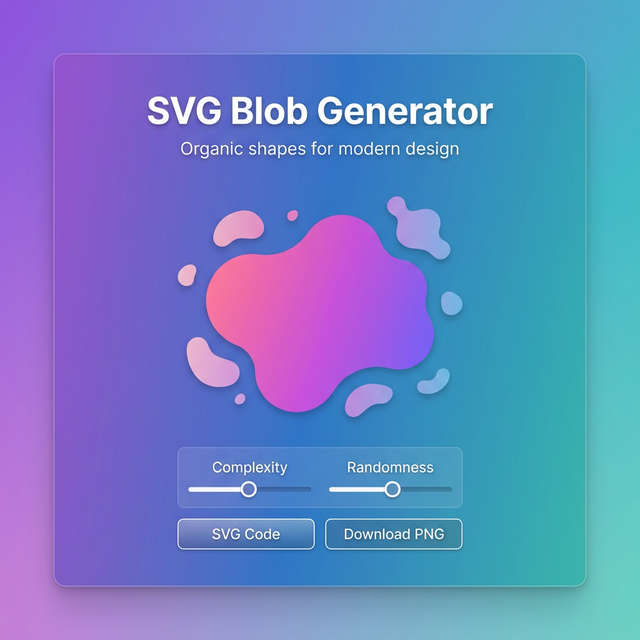
A blob appears organic but is mathematically defined. Our generator creates blobs using Bézier curves on a base polygon:
- Base polygon: Start with a regular polygon (e.g., 8 points equally spaced around a circle).
- Randomize radii: Each point's distance from the center is varied by a configurable amount (the "complexity" or "randomness" slider).
- Apply smooth curves: Rather than connecting points with straight lines, cubic Bézier curves are drawn between each point with control handles that ensure smooth, continuous transitions.
- Close the path: The curve wraps back to the first point seamlessly.
The result is a unique, smooth closed SVG path that looks completely organic but can be reproduced exactly from its numeric parameters.
Customization Options
Complexity: Controls the number of points in the base polygon. Fewer points (4–5) create simple, large blobs. More points (8–12) create more intricate, irregular shapes.
Randomness: How much each point deviates from the base circle. Low randomness = nearly circular. High randomness = wildly irregular, spiky blobs.
Colors: Fill color with gradient support. Apply a solid color, a linear gradient, or a radial gradient to your blob.
Size: Control the output dimensions. For SVG, you usually want viewBox coordinates; for CSS clip-paths, you want percentages.
Seed: Every blob has an underlying random seed. Use the lock icon to keep exploring variants at the same complexity/randomness settings.
Export Formats
SVG code: The raw <svg> element with the path, ready to paste directly into your HTML. SVGs are scalable — they look perfect at any size or resolution.
CSS clip-path: Use the blob shape as a clip-path on any HTML element (images, divs, buttons) using the clip-path: path(...) CSS property.
PNG download: Rasterize the blob at any resolution for use in Figma, Photoshop, or as an image asset.
Best Practices
Use blobs behind, not over content. They work best as background decorations with reduced opacity (15–30%), not as foreground elements competing with text.
Stick to 2–3 blobs per page. Blob overload creates a chaotic, unfocused layout. Less is more.
Match your brand palette. A blob in your primary brand color with 20% opacity adds brand presence without overwhelming the design.
Animate with CSS. Blobs are beautiful when subtly animated with @keyframes using border-radius or d attribute transitions for a slowly morphing effect.
Related Tools
- CSS Gradient Generator — Create gradients to fill your blob shapes
- Color Picker — Find the perfect color for your blob
- Border Radius Generator — Create rounded rectangle alternatives to blobs
- Box Shadow Generator — Add depth to blob shapes with shadows
Recommended schema: SoftwareApplication + FAQPage