
PDF Page Reorder — Rearrange PDF Pages Free, No Upload
Pages in the Wrong Order? Fix It in Seconds
A document scanned in two passes — all front pages then all back pages — needs interleaving. A merged PDF from multiple contributors has chapters scrambled. A draft report has the appendix before the introduction.
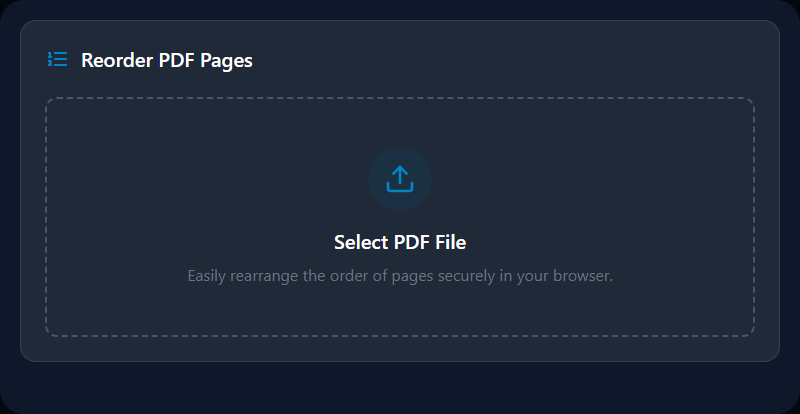
The Page Reorder tool gives you visual, drag-and-drop control. Upload your PDF, see thumbnail previews of every page, drag them into the right sequence, and download the corrected document. Nothing leaves your device.
What You Can Do
Reorder pages by dragging — move any page to any position in the document. The UI displays thumbnails so you're working with visual page content, not guessing from numbers.
Reverse the entire document — flip all pages from front-to-back to back-to-front in a single click. Useful for correcting documents printed and scanned in reverse.
Delete unwanted pages — remove pages directly from the reorder interface before downloading, avoiding a separate tool step.
Move pages to specific positions — type a target position for precision reordering in documents with hundreds of pages where dragging across the full list isn't practical.
How It Works Technically
PDF pages aren't a simple numbered list — each page is a complex object linked to shared resources (fonts, images, form data) across the document. Reordering incorrectly breaks these cross-references.
pdf-lib handles this safely:
- The PDF is parsed into a complete object graph in browser memory
pdfDoc.getPages()retrieves all page objects in current sequence- A new PDF is created with
PDFDocument.create() newDoc.copyPages(originalDoc, newOrderIndices)safely duplicates each requested page with all its dependencies- Pages are added to the new document in your specified order
- The correctly structured, reordered PDF is saved and downloaded
Page thumbnails are generated by PDF.js, which renders each page to an HTML Canvas at reduced scale for the drag-and-drop interface.
Practical Scenarios
Double-sided scanning: Most desktop scanners that don't support duplex scanning require two passes — scan all fronts, flip the stack, scan all backs. The result is all odd pages followed by all even pages. Interleaving them takes seconds with the reorder tool.
Custom presentation sequencing: Rearrange slides or sections from a standard deck to match a specific audience or meeting agenda without rebuilding the original file.
Correcting merged documents: After combining PDFs from multiple contributors, the page sequence may need fine-tuning before distribution. Adjust order here rather than redoing the merge.
Reverse-order print jobs: Some printer configurations output pages in reverse (last page first). Reorder the digital PDF to match the expected physical stack sequence before printing.
Removing pages before sharing: Delete internal review notes, draft watermark pages, or placeholder pages before finalizing a client-facing document.
Best Practices
Use thumbnail previews to verify content, not just position numbers. A PDF's internal page count may not match the printed page numbers if the document has cover pages, front matter, or non-standard numbering.
Work with a copy of your document. The tool reads the original and creates a new output. The original file isn't changed — but keeping a backup is always a good habit before page-level operations.
For documents with 100+ pages, consider extracting the relevant page range first using Split PDF, reordering that smaller section, then reassembling with Merge PDF.
Add fresh page numbers after reordering. Visual page numbers printed in the document content don't update automatically — they're baked into the page images. Use the PDF Page Number Adder after reordering to apply correct sequential numbers.
Limitations
Encrypted PDFs can't be loaded. Remove the password with Remove PDF Password before reordering.
Annotations referencing specific page numbers won't auto-update. If your document has a table of contents with "See page 12" references, those references remain as-is even if page 12 moves. Update these manually in a PDF editor after reordering.
Visually printed page numbers (part of page content) stay fixed. Only structural reordering changes — not the numbers visible on the pages themselves.
Large files take more time to generate thumbnails. A 200-page, 50MB PDF takes longer to preview than a 10-page document. Processing time depends on your device's CPU and RAM.
Related PDF Tools
- Merge PDF — Combine multiple PDFs after reordering sections
- Split PDF — Extract pages from a large document before reordering
- PDF Page Number Adder — Add correct page numbers after reordering
- Remove PDF Password — Unlock protected PDFs before reordering
- PDF Compressor — Reduce the size of the reordered document
Recommended schema: SoftwareApplication + FAQPage + HowTo